Warning
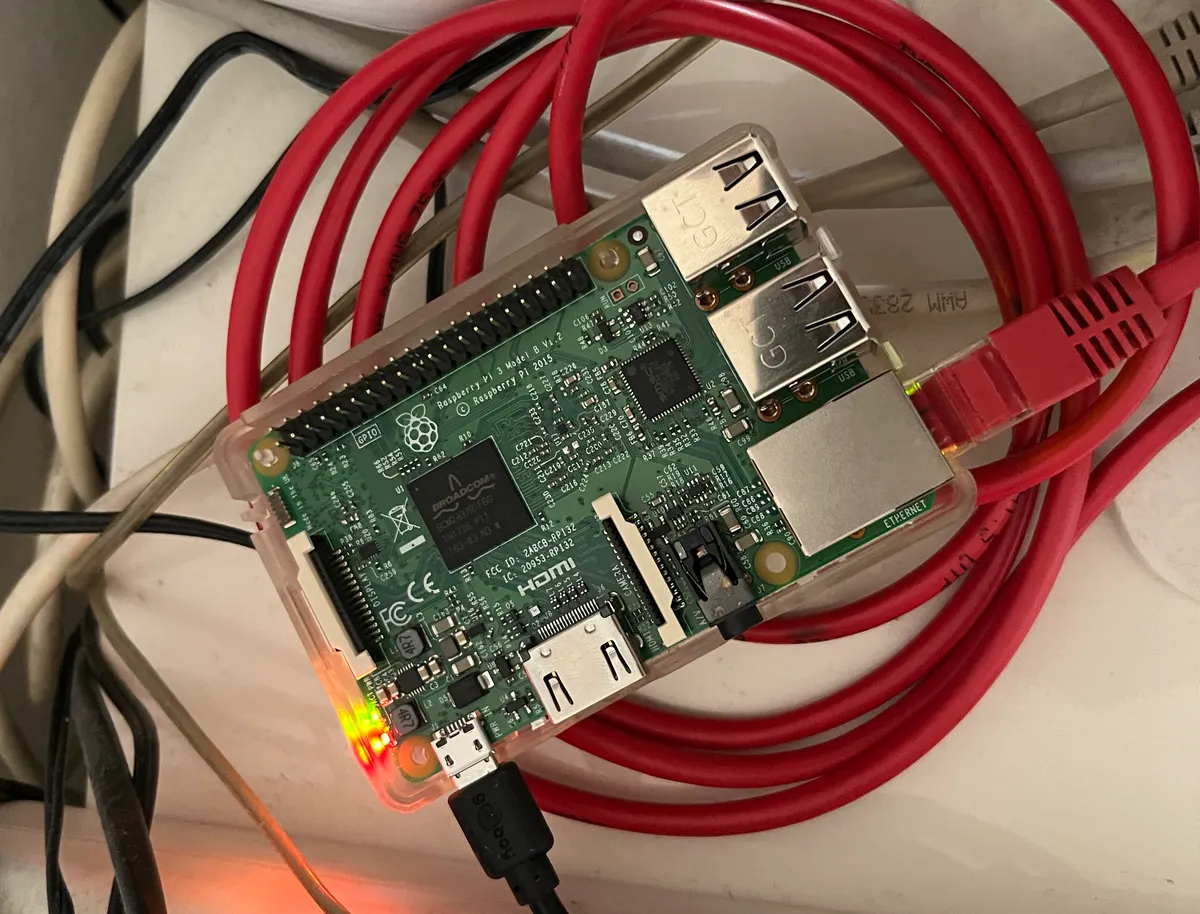
Ignore my dusty network cabinet.
Nono.
I recently fell in the Apple ecosystem and I can’t get out. Frankly I don’t want to, the MacBook M4 paired with iPhone and AirPods is insanely good but thats for another story. Obviously I switched to Safari as my main browser. Arc would be better but, as you probably know they sold their soul to the AI Gods and ended development for Arc.
Ads are bad. Ads everywhere in safari with no options like uBlock origin. Apple being Apple there are only paid options that don’t seem that great anyway.
Thats when I remembered my old project from highschool: the PiHole. It’s a network-wide ad blocker that runs on a Raspberry Pi and filters DNS requests before they even reach your devices.
So I deleted the Vinted listing for my old Raspberry Pi 3 B that was collecting dust and not selling due to the high price I placed itentionally in case I ever get a use for it.
Setting up the Raspberry and Router
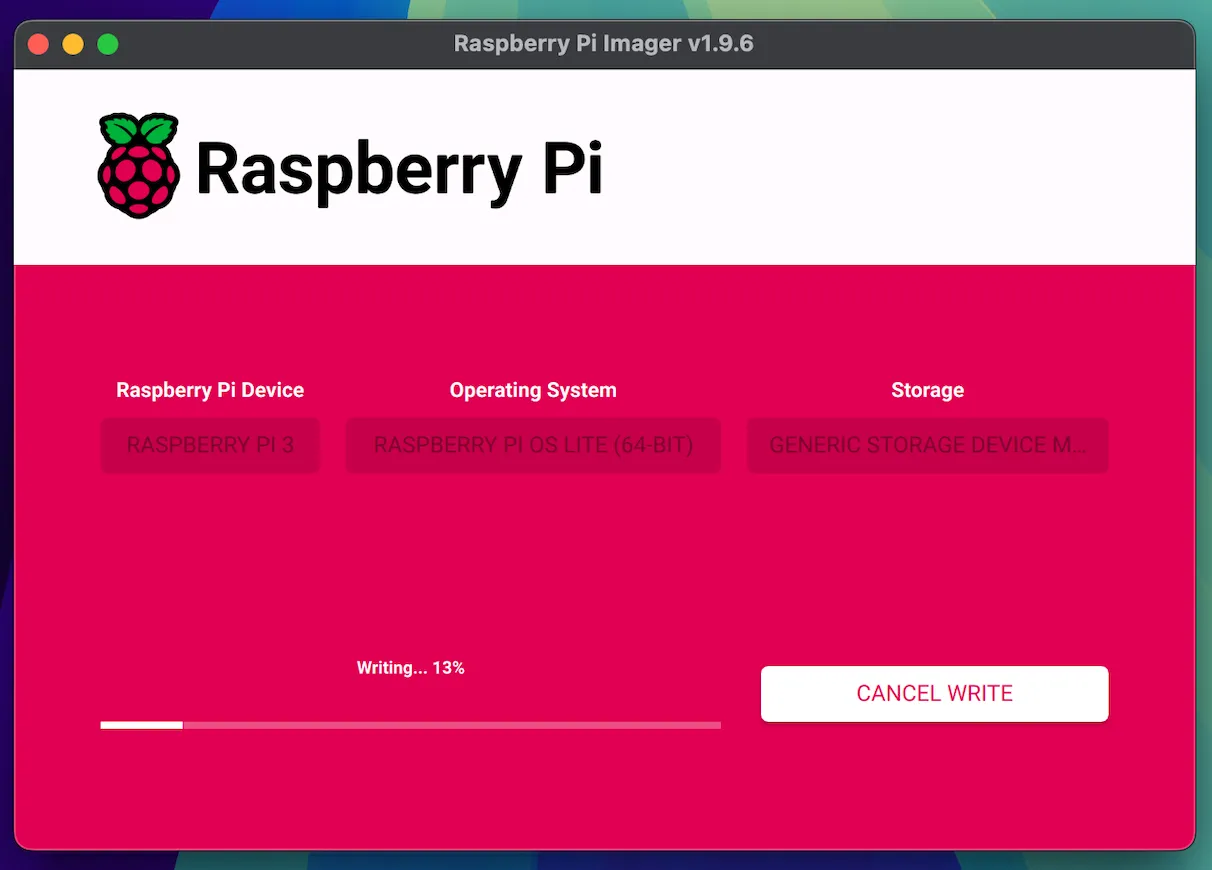
I am using raspberry pi OS Lite version so as always size doesn’t matter and any SD-Card will be more than enough to satisfy our needs.
When asked to customize the OS we are gonna click yes. Set the hostname, username and password and make sure to enable SSH since this will be my favourite way aka headless.
Next part depends on the type of router and ISP we have. In my case its a SpeedPort where we need to find the MAC and IP of the Raspberry to give it a static IP adress. Otherwise SSH-ing and accessing the web GUI would be tragic.
Plug the SD, ethernet and power cable into the Rasbperry. Set the new static Raspberry IP address as primary DNS in my router settings and restart it to re-serve.
SSH and PiHole
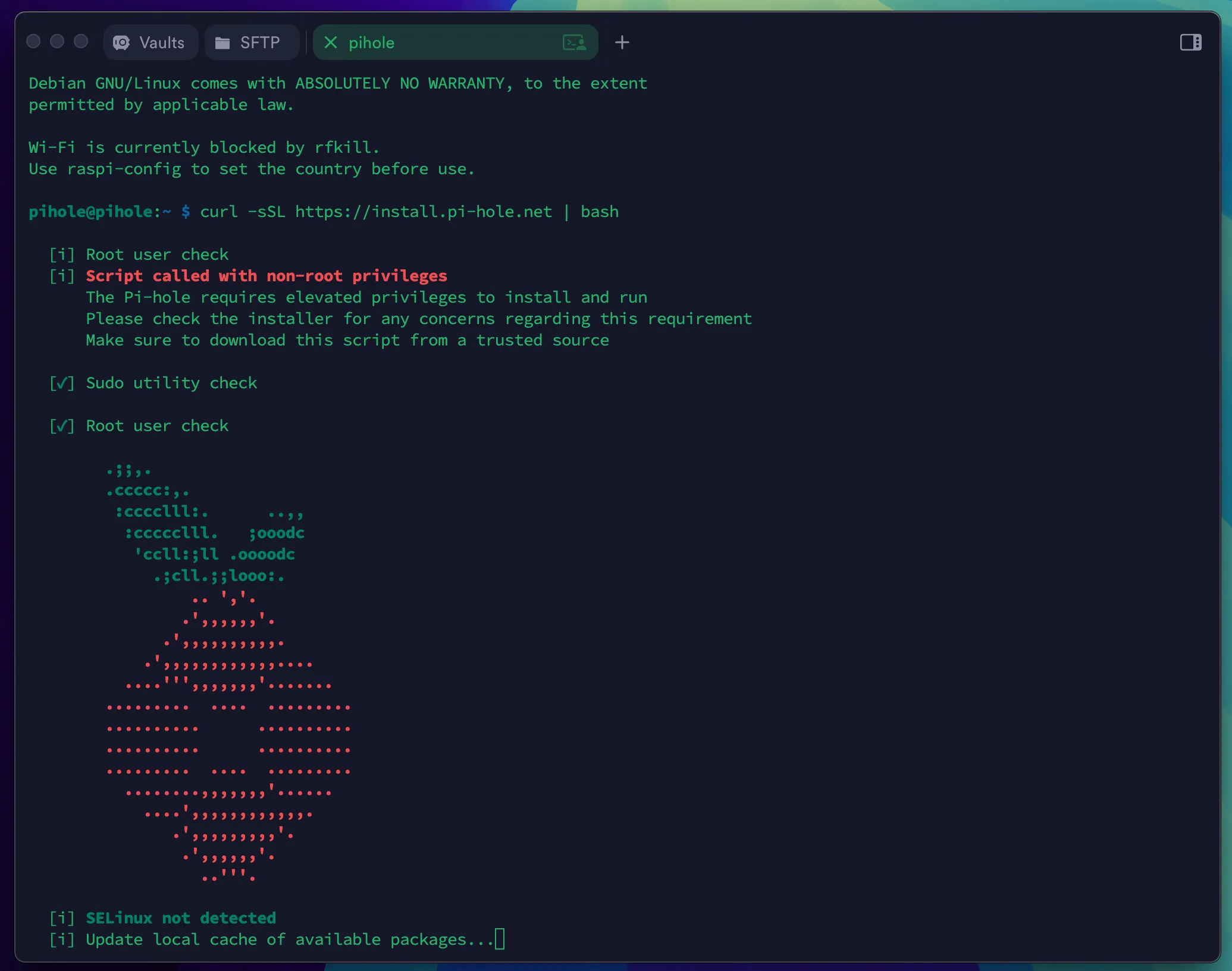
I used Termius to SSH into the Rasbperry, it came free with the github student pack and its aesthethically pleasing. I like pretty stuff.
Go thru the pihole installation, check the boxes that need to be checked and change the default web interface password. Oh also change the port in the config files maunally because apparently v6 onwards broke the webhost stuff after moving from lighttpd. For anyone reading this post in 2025 just change the port to 8080 to save you the trouble.
Bonus
The Raspberry Pi’s LED lights are too bright at night so I made a small script to toggle them on/off. You can check it out here:
#!/bin/bash# Usage: sudo noled.sh on#        sudo noled.sh off
LEDS=(/sys/class/leds/ACT /sys/class/leds/PWR)STATE=$1
if [ "$STATE" != "on" ] && [ "$STATE" != "off" ]; then    echo "Usage: sudo $0 on|off"    exit 1fi
VALUE=1[ "$STATE" == "off" ] && VALUE=0
for led in "${LEDS[@]}"; do    [ -d "$led" ] || continue    echo none | sudo tee "$led/trigger" > /dev/null    echo $VALUE | sudo tee "$led/brightness" > /dev/nulldone
Give it permissions and set up a cronjob for automatic toggle at nightime/morning.
Results
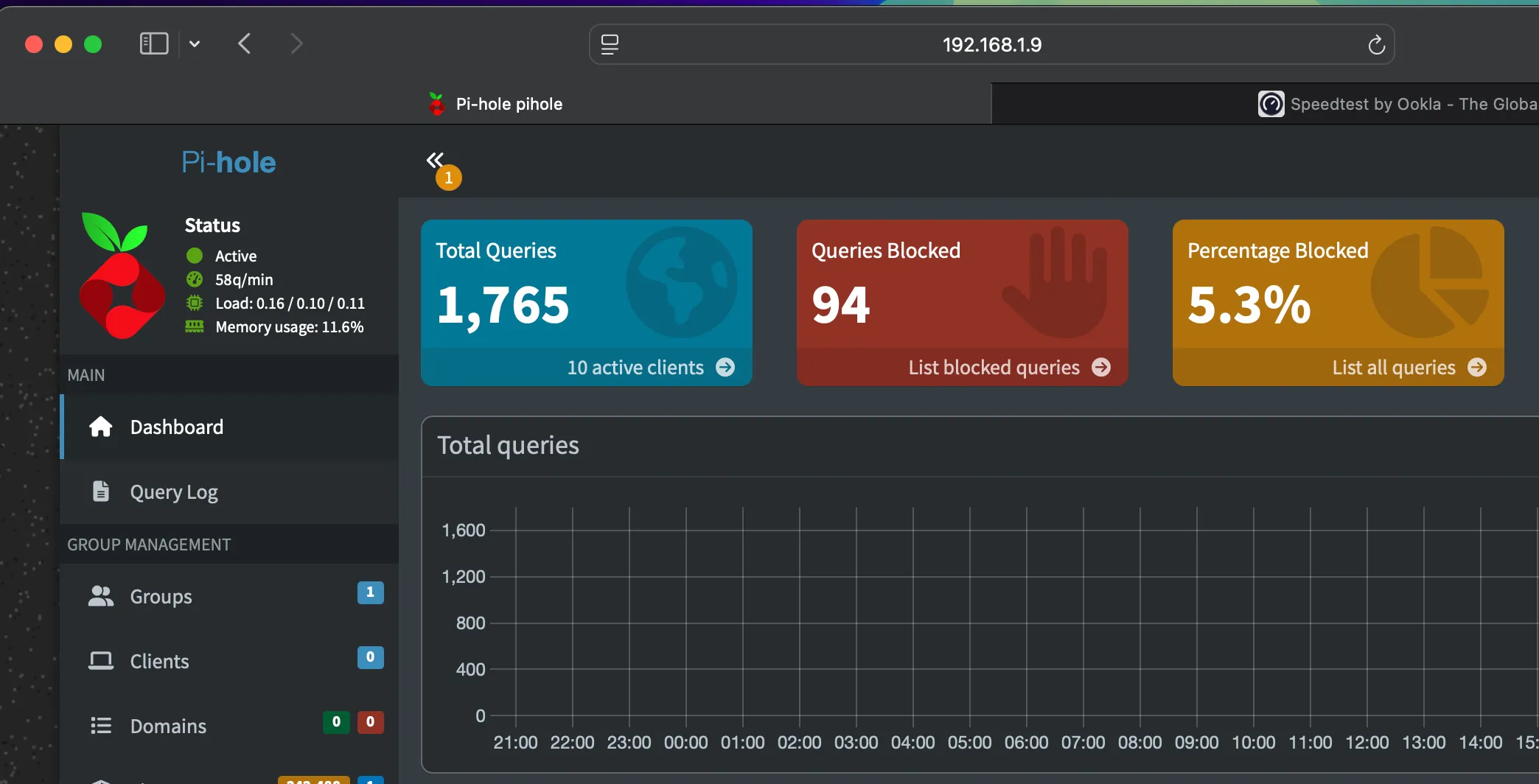
Thats about it in short. It blocks ads and trackers on all devices connected to my home network, netflix seems to be logging a lot which I didn’t expect.
The picture at the end is results of just opening speedtest page.